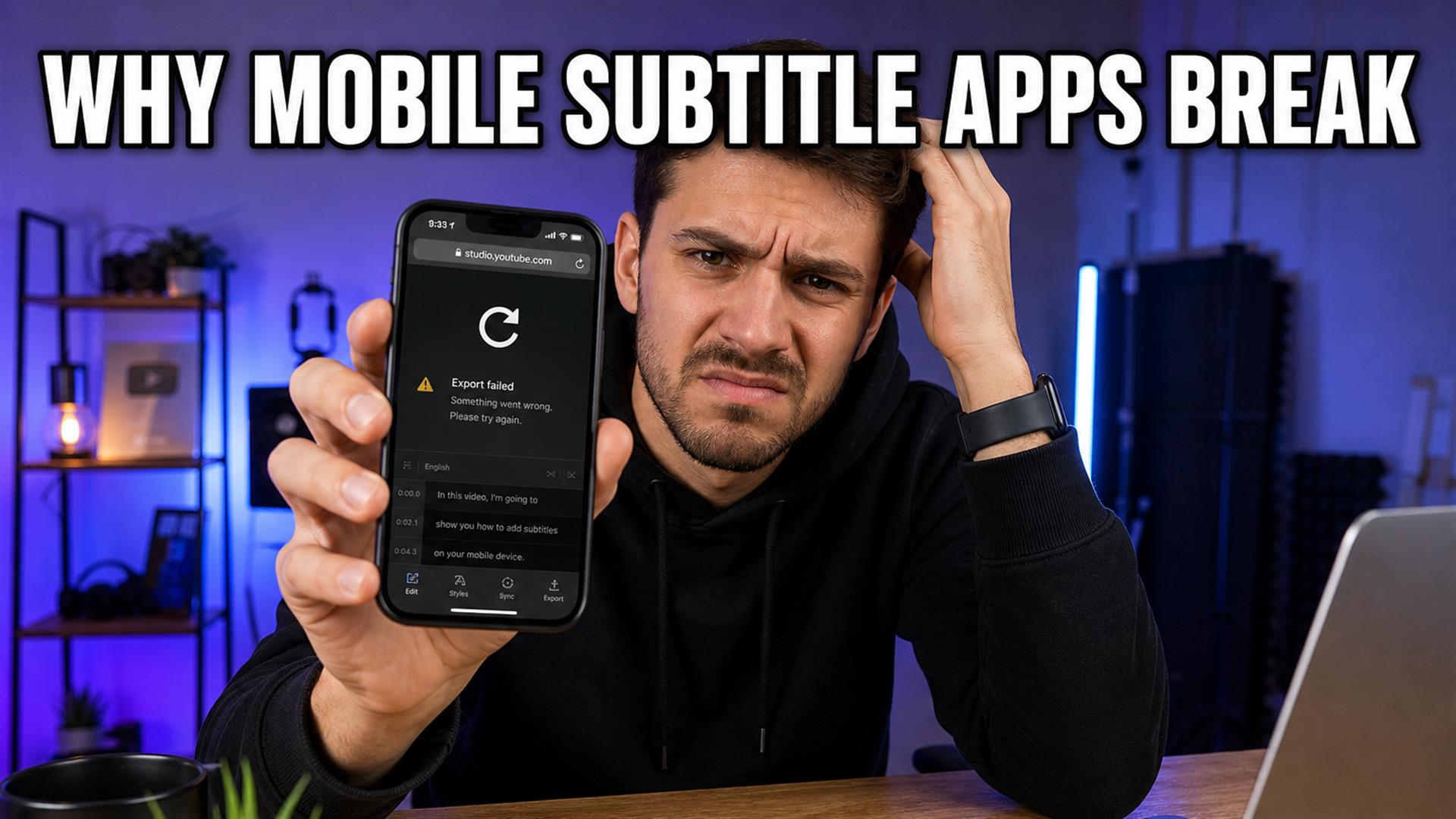
Mobile subtitle apps on iPhone still break in 2026 because Safari and Chrome both run WebKit under tight memory rules — not because you’re bad at editing. Giant browser timelines, long uploads on LTE, and exports stuck at 99% are predictable. What worked: native finish (CapCut/TikTok), text-first SRT in a lightweight tab (Cutup), hook fixes on the final vertical file. Full stacks: Shorts workflow, SRT guide.
I used to think “mobile-friendly” on a subtitle tool’s marketing page meant it would work on my iPhone. It usually means “you can open the URL.” Six weeks of posting from parking lots, hotel Wi-Fi, and one bar with allegedly full LTE later — I have opinions. Specifically about Safari subtitle issues, iPhone subtitle editor fatigue, and why your export bar loves sitting at 99% while your soul leaves your body.
If you’re a YouTuber, TikTok creator, or Reels person who captions on phone because that’s where the clip already lives — this is what broke, what didn’t, and the mobile video editing workflow that stopped wasting my Tuesday nights.
The failure modes repeat. You open a browser subtitle tool in Safari, upload a vertical clip, get halfway through cue fixes, switch to check a DM — and when you come back the tab has reloaded. Or the export bar crawls to 99% and sits there until you force-quit. Or the upload restarts from zero on LTE while the UI still says “processing.” None of that is you being careless; it’s what happens when desktop-class web apps meet iPhone memory rules.
We’re not saying “never caption on phone.” We’re saying: know which jobs belong in Safari at all, and which belong in CapCut, TikTok, or a text-only tab you can close the second the SRT downloads.
We Tested Subtitle Workflows on Real iPhones
Hardware: iPhone 14 and 15, iOS current at time of testing, mix of Wi-Fi and cellular. Browsers: Safari (default) and Chrome. Apps: native TikTok draft flow, CapCut, plus several browser-based subtitle tools creators actually name in Discord threads.
Scenarios we ran on purpose:
- YouTube Shorts — vertical export, upload to Shorts shelf, captions before vs after trim.
- TikTok — film in app, auto-caption, re-trim hook, export.
- Instagram Reels — import from camera roll, burn-in, post.
- Browser subtitle pass — paste link, generate text, try to export on Safari.
File sizes mattered more than we wanted. A 45-second talking-head at 1080×1920 was fine. A three-minute clip with B-roll — or worse, a screen recording of a tutorial — was where subtitle apps crashing stopped being rare and started being Tuesday.
Weak-internet tests were the rudest. Not “airplane mode” fake — real throttled LTE, the kind you get when a venue’s Wi-Fi is lying about being free. Uploads that cheerfully restarted. Exports that pretended to finish. Captions that looked synced in preview and drifted on device after export. This was surprisingly annoying because the same tools on the same account on desktop felt… fine.
We also logged subtitle export failed moments by platform. Shorts uploads from the YouTube app sometimes accepted burned-in captions from CapCut but rejected a re-upload after we trimmed the hook — timing drift again. TikTok’s in-app auto-caption was fastest for same-day posts but butchered product names. Reels wanted the file pre-captioned; trying to fix lines inside Instagram’s editor after upload felt like typing through molasses. The pattern: native apps win when the job is “get vertical video out”; browser tools win when the job is “get clean text or SRT without opening a timeline.”
File-size brackets we actually used: under 50MB (usually fine), 50–150MB (upload anxiety on cellular), 150MB+ (expect restarts or “use Wi-Fi” warnings). If your iPhone creator workflow starts with a screen recording or a 4K export from another app, compress before Safari sees it — boring advice that saved more sessions than any browser swap.
The Biggest Problem Is Memory Management
Non-technical version: your phone is not a small MacBook. It’s a device that will murder background tabs to keep the camera app alive. iOS gives each Safari tab a memory budget. Load video preview + waveform + effects UI + a fat JavaScript bundle and you’re asking for a reload.
What that looks like in creator language:
- Safari tab refreshes — you come back from Messages and the project is a blank page or a login screen.
- Large video processing — scrubbing stutters, audio preview desyncs, fanless phone gets warm.
- Browser crashes — not always a dramatic error; sometimes a polite reload.
- Background reloads — you switched to check analytics; Safari decided your caption pass was optional.
Chrome on iPhone didn’t get a magic exemption. Apple requires WebKit for browser engines on iOS. So “I’ll just use Chrome” is mostly a different bookmark bar, not a different physics engine. Memory limits still win.
Think of Safari like a strict bouncer: every open tab is drinking from the same RAM pool as your camera roll preview, your music app, and whatever podcast app you left playing. Load a video decoder, a waveform, and a React timeline at once and something has to leave — usually your half-finished subtitle workflow mobile session. Creators who batch five clips in five tabs and wonder why everything reloads are fighting the OS, not the tool’s logo.
Why Some Subtitle Tools Completely Fail on Mobile
Desktop-first browser subtitle tool products assume: wide screen, stable RAM, you’ll wait ten minutes for upload, you have a mouse for micro-adjustments. On phone they become:
- Giant web apps — full NLE in a tab, timeline scrubbing with your thumb.
- Heavy JavaScript — effects panels, preview players, asset libraries.
- Export queues — server-side render while your tab still holds state.
- Desktop UI patterns — hover tooltips that don’t exist on touch; panels that cover the preview.
Many tools work fine on a laptop. On iPhone they’re a patience test. You’re not “bad at mobile editing.” You’re using a forklift in a hallway.
Platform auto-captions (YouTube auto captions included) are a separate headache — fine for “something on the video,” painful when you need a master file or brand names. External generators help when the job is words, not pixels — our generator roundup is blunt about who gates SRT on mobile.
The Workflow That Actually Worked Best
The stack that survived most often wasn’t the flashiest. It was boring on purpose:
- Paste link (or upload short clip on Wi-Fi).
- Generate transcript — fix names once.
- Export SRT — download file while the tab is still alive.
- Import into CapCut (or finish native auto-caption there).
- Rewrite hook line, check safe zone, export vertical MP4.
No giant timeline in Safari. No “scrub hour-long podcast in mobile Chrome” unless I hate myself.
Cutup fit the lightweight slot for us: link in, text out, SRT when quotas allow. It’s not trying to be Premiere in your pocket — which is exactly why it didn’t reload mid-pass as often as all-in-one browser studios. Not overselling: you still need a finisher app for burn-in and vertical export. But for add subtitles on iPhone without living inside a broken timeline, text-first beat effects-first.
Safari vs Chrome on iPhone
Real observations from the same accounts, same clips, same week:
- Safari memory reloads — slightly more aggressive when switching apps during upload.
- Chrome on iPhone — still WebKit; occasional differences in download behavior and “Open in…” handoffs.
- Upload differences — neither loves 500MB on cellular; Wi-Fi pre-stage wins.
- Clipboard behavior — pasting SRT text into CapCut: both fine; long URLs into tools: verify paste didn’t truncate.
- Background tabs — iOS may suspend either; don’t trust unsaved browser state.
Verdict we kept repeating: pick the workflow that minimizes time inside any browser tab, not the browser icon on your dock.
What Broke During Testing
Authentic failure log — not cherry-picked wins:
- Uploads restarting at 60–80% on LTE — generic “network error,” file unchanged.
- Export freezing at 99% — progress bar theater; job dead on server.
- Subtitles desyncing after trim — preview lied; export told truth.
- Tabs refreshing — lost in-browser cue edits; SRT download saved us when we remembered.
- Audio extraction failing on link ingest — rights/geo/link format; not always Safari’s fault, still mobile friction.
- Keyboard covering edit fields — half the sentence invisible while typing brand names.
Most tools still fail here: they ask phone creators to do desktop minutes-per-clip work on a 6-inch panel with interruptible memory.
Shorts, TikTok, and “Just Use the App”
Native isn’t perfect — it’s optimized. TikTok auto-caption is fast; brand names still need a human. CapCut templates save Sundays. For subtitle workflow mobile publishers posting 4–5× week, the win is template + hook discipline, not a new browser tab per clip.
When you need the same lines in YouTube Studio and Premiere, native-only burns you. That’s where generating SRT once and reusing beats retyping in every app.
The Real Lesson for Creators
Most of us do not need a full desktop editing suite on mobile. We need:
- Speed — draft captions before the moment passes.
- Stability — fewer reloads, fewer 99% ghosts.
- Fast subtitles — readable two lines, hook fixed.
- Quick exports — vertical MP4 out the door.
- Lightweight workflows — text job separate from pixel job.
If your current stack has you fighting Safari more than fighting weak hooks, the tool is wrong — not your thumb. Split the work: browser for words, native app for finish, desktop when the episode is long.
For Shorts-specific safe zones and caption rhythm, our Shorts subtitle workflow pairs well with this iPhone stack — same readability rules, less Safari time.
Practical rule: If you can’t explain your mobile subtitle stack in one sentence (“link → SRT → CapCut → post”), it’s probably too heavy for Safari.
Final Verdict
Mobile subtitle apps break on iPhone Safari because iOS memory management and desktop-first web UIs collide. Chrome doesn’t fix WebKit limits. Native apps win burn-in; lightweight browser tools win SRT and transcript when they stay small.
Stop expecting your phone to run a forklift. Paste the link, export the file, finish where touch is native — and keep a Wi-Fi window for anything longer than a minute of 9:16.
FAQ
Why do subtitle apps crash on iPhone?
Usually RAM limits plus heavy video preview in the browser. iOS suspends or reloads tabs. Large uploads and timeline scrubbing make crashes more likely than typing captions in a lightweight flow.
Why does Safari refresh during uploads?
iOS reclaims memory from background tabs. Long uploads look idle to the system. Switch apps at your own risk — save downloads early.
Is Chrome better than Safari on iPhone?
Marginally for some downloads; both use WebKit. Stability comes from lighter tools, not swapping browsers.
What is the fastest way to add subtitles on mobile?
Native auto-caption in CapCut or TikTok for same-day posts. SRT-first: generate text in a small web tool, import, style once, export.
Why do exports fail on mobile subtitle tools?
Cellular timeouts, server queues, tab reload mid-job, or encoding while preview still runs. 99% freeze often means the network job stalled.
Can I generate SRT subtitles on iPhone?
Yes — use tools that offer SRT download without a full NLE in the tab. See our SRT tutorial.
Are browser subtitle tools better than apps?
Browsers for text and files; native apps for vertical burn-in. Hybrid wins.
What subtitle workflow works best for Shorts?
Caption the final vertical cut, two lines, hook rewritten. Details in our Shorts workflow guide.